
Can’t Understand the Software Interface? Focus on These Key Areas——YINK FAQ Series — Episode 12
Quick Answer
New users do not need to understand every button in the software at once.
For daily PPF shop work, the key is to understand six main areas:
- Data Center
Find the correct vehicle data. - Design Center
Edit and prepare the pattern. - Tutorial
Learn unclear functions through videos. - Saved Versions
Return to previous saved work. - Crop Records
Check past cutting history. - Personal Information
Manage account, subscription, and permissions.
Important Content
The best learning order is: understand the structure first, then learn the operations.

Why This Matters for PPF Shops
Many shop owners and installers feel confused when they first open professional PPF cutting software.
The reason is simple: the software is not just for one task.
It usually includes:
- Vehicle data search
- Pattern editing
- Layout preparation
- Cutting workflow
- Saved files
- Cutting history
- Tutorial access
- Account management
For a busy PPF shop, each area supports a different part of the job.
A better way to understand the interface is to think of it as a workflow:
Find vehicle data → edit pattern → check tutorial → save version → review cutting record → confirm account access
Once this workflow is clear, the interface becomes much easier to use.
Interface Map: What Each Area Does
| Module | Main Purpose | Why It Matters |
|---|---|---|
| Data Center | Select brand, year, and model | Prevents wrong pattern selection |
| Design Center | Edit, move, adjust, and layout patterns | Prepares the file before cutting |
| Tutorial | Find video lessons | Helps new users learn faster |
| Saved Versions | View previous saved files | Reduces repeated editing |
| Crop Records | Check cutting history | Helps review and verify past jobs |
| Personal Information | Manage account settings | Controls access, subscription, and permissions |
1. Data Center: Start Here First
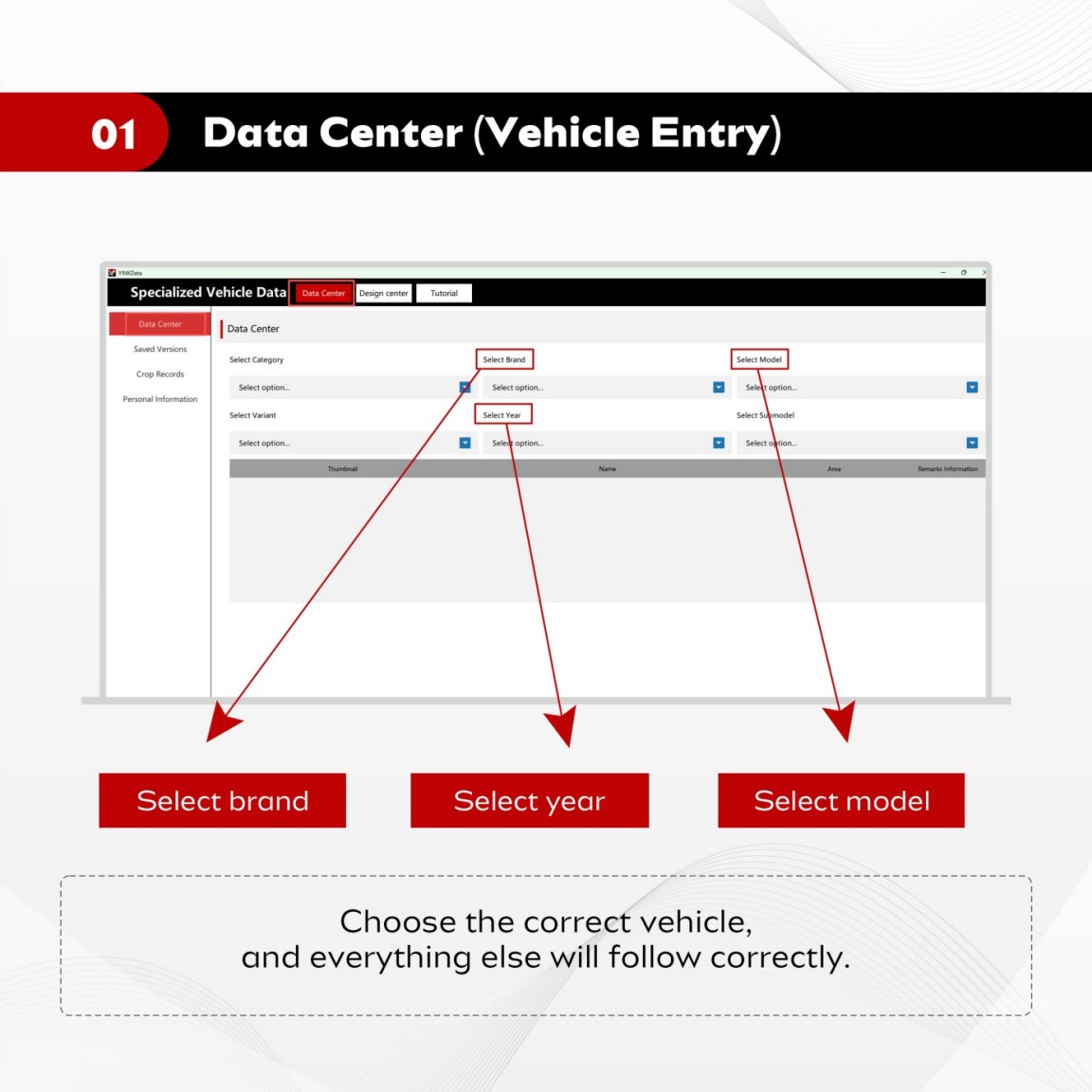
Data Center is the vehicle entry point.
This is where users select:
- Brand
- Year
- Model
For PPF shops, this step is critical because every following step depends on the selected vehicle data.
Why Data Center Is Important
If the wrong vehicle is selected, the editing and cutting results may also be wrong.
A vehicle pattern is connected to a specific body shape, bumper design, mirror structure, headlight position, and trim version. Similar model names can still have different patterns.
Real Shop Example
A technician prepares a front bumper kit for a customer’s vehicle.
If the selected model year is wrong, the pattern may look similar on screen but fail during installation. This may lead to:
- Wasted PPF material
- Extra cutting time
- Delayed delivery
- Installer frustration
- Lower customer satisfaction
Important Content
Always confirm the correct vehicle in Data Center before editing or cutting.
2. Design Center: The Main Editing Area
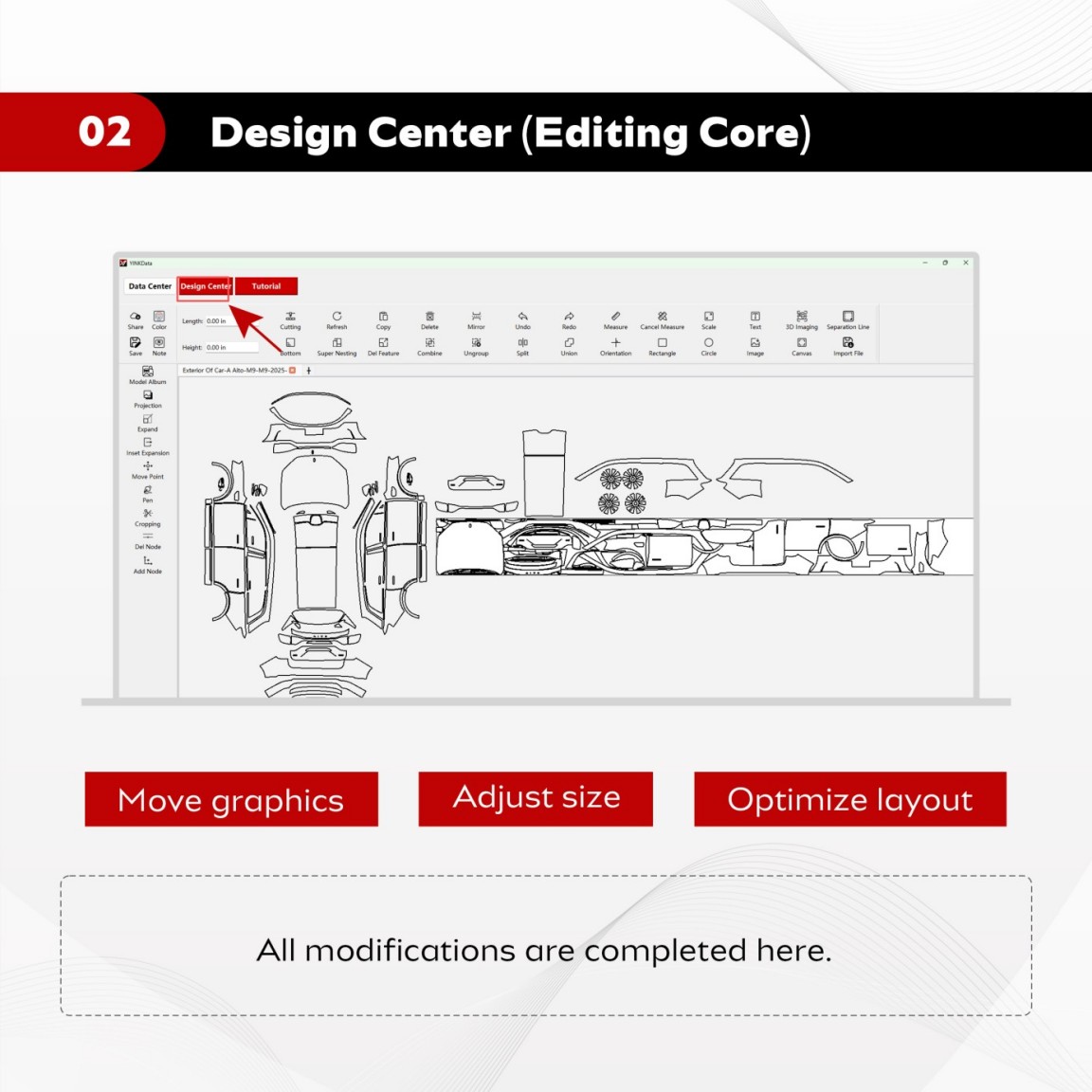
Design Center is where most daily editing work happens.
Users can:
- Move graphics
- Adjust size
- Optimize layout
- Delete unnecessary parts
- Prepare the file before cutting
What Shops Usually Do Here
A shop may not need to cut a full vehicle every time.
For example, a customer may only need:
- Hood
- Front bumper
- Fenders
- Mirrors
- Door cups
In Design Center, the technician can select the needed parts and remove anything unnecessary.
Why This Helps Business
Good editing habits can help shops:
- Reduce material waste
- Avoid repeated cutting
- Improve layout efficiency
- Make installation more predictable
- Save preparation time
Installer Tip
Before sending the file to the plotter, check the layout carefully.
Small mistakes in the editing stage can become expensive mistakes after cutting.
3. Tutorial: Learn Faster Without Guessing
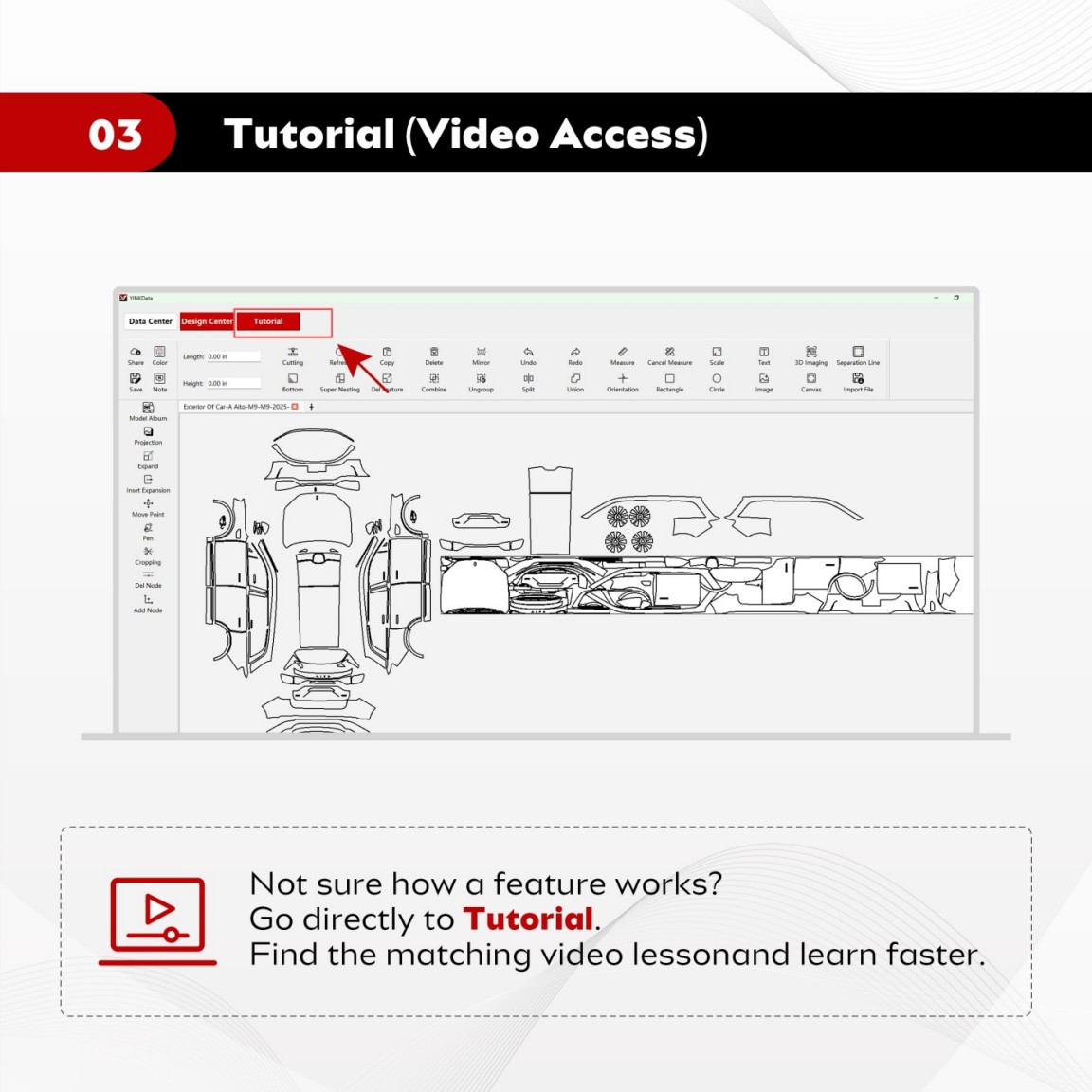
Tutorial is the video learning entrance.
When users do not understand a function, they should not randomly test it on real jobs.
They can open Tutorial and find the matching video lesson.
Why Tutorial Is Useful
For shop owners, Tutorial can reduce repeated staff training.
For new technicians, Tutorial can make learning easier and more visual.
For the whole team, Tutorial helps create a more consistent operating standard.
Best Use Scenario
When a new employee does not know how to adjust a pattern, the shop can ask them to watch the related tutorial first.
This is usually safer than guessing.
Important Content
When you are not sure about a function, check Tutorial before cutting real material.
4. Saved Versions: Protect Your Previous Work
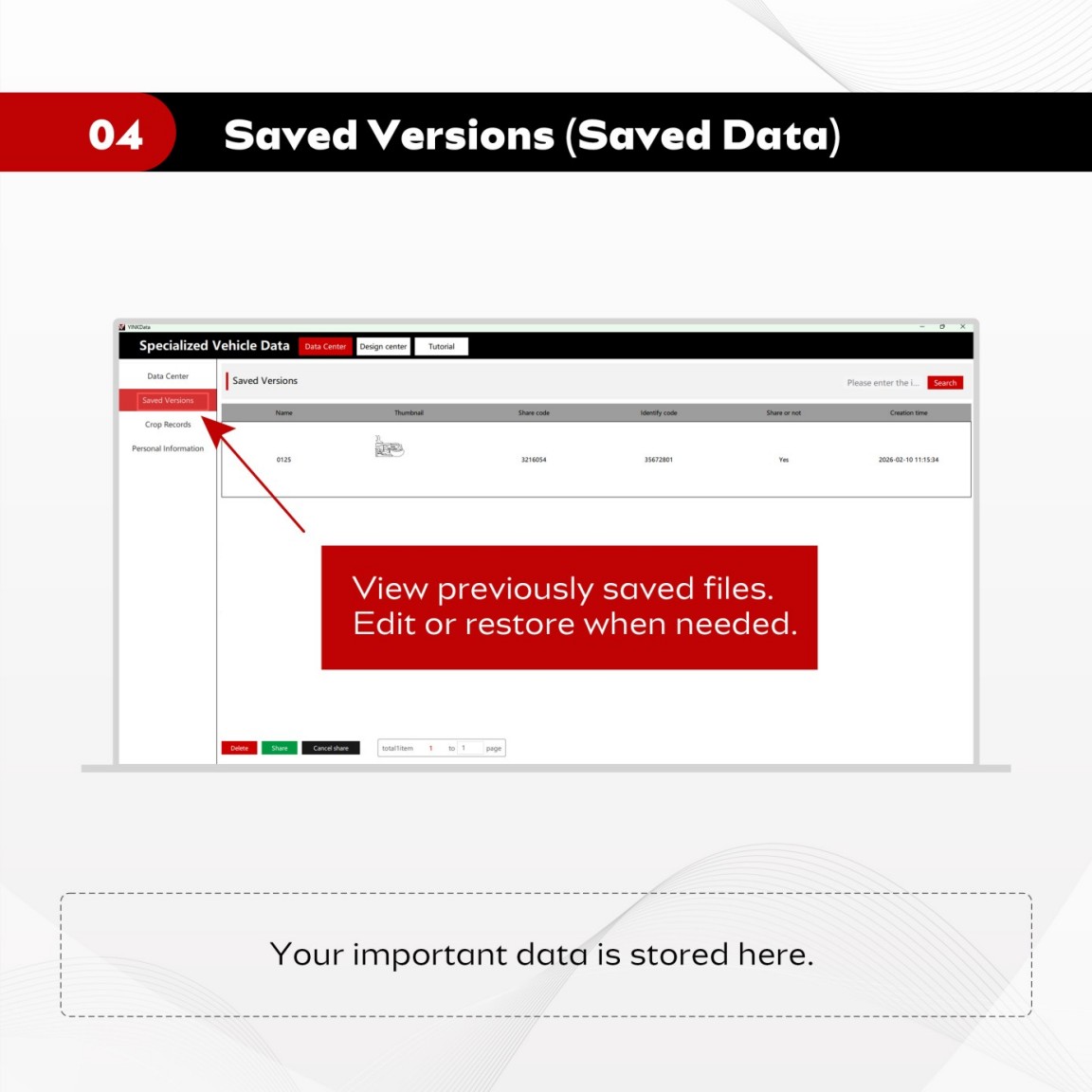
Saved Versions allows users to view previously saved files.
This matters because PPF shops often need to return to earlier work.
Common Shop Scenarios
Saved Versions is useful when:
- A customer adds another part later
- A technician needs to adjust a saved pattern
- Another staff member continues the same job
- The shop repeats a similar vehicle job
- A previous edit needs to be restored
Why It Reduces Rework
Pattern editing takes time.
If the file is not saved, the shop may need to repeat the same work again.
Saved Versions helps protect that time.
Workflow Tip
Save important edits before moving to cutting, especially for customer-specific jobs.
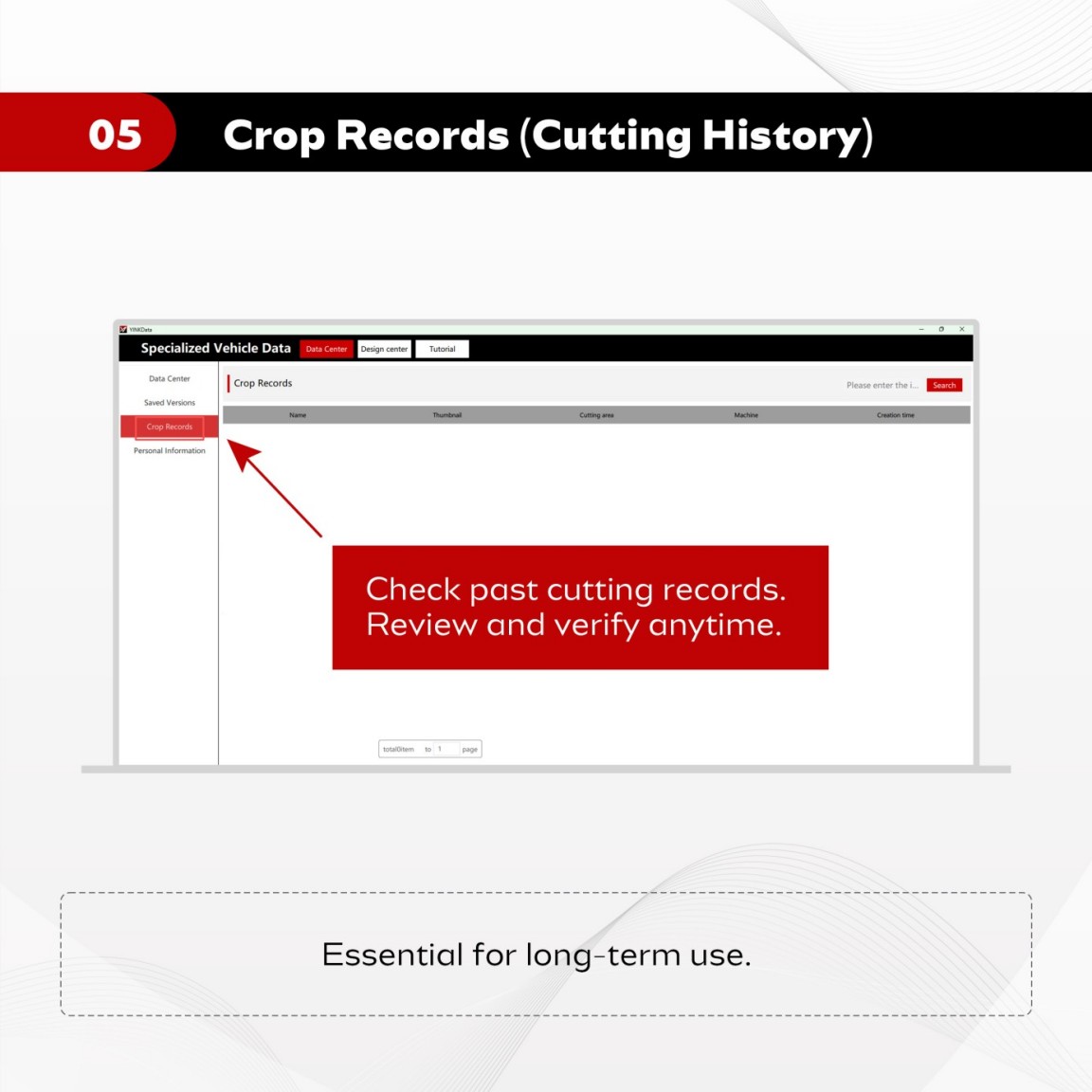
5. Crop Records: Track Your Cutting History
Crop Records stores previous cutting records.
This module becomes more valuable as the shop handles more jobs.
Why Cutting Records Matter
Crop Records helps shops answer questions like:
- Was this file already cut?
- Which version was used?
- When was the job processed?
- Can we review the previous cutting task?
- Was the correct file sent to the plotter?
Operational Value
For small shops, memory may be enough at the beginning.
For busy shops, records are necessary.
Cutting history helps with:
- Job tracking
- Quality review
- Team communication
- Dispute checking
- Workflow management
Important Content
Crop Records turns cutting activity into traceable workflow information.
6. Personal Information: Check Account Status
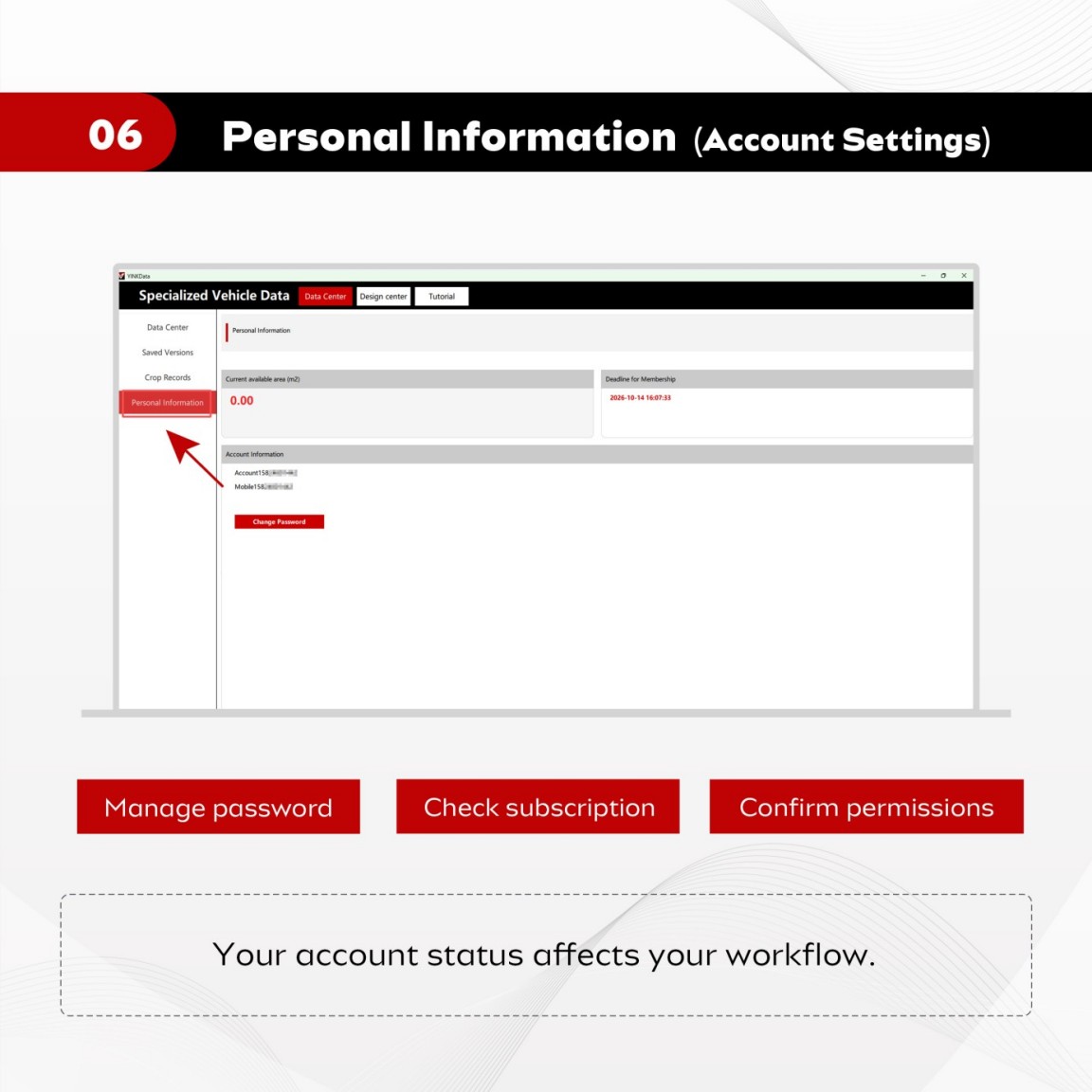
Personal Information is where users manage account settings.
This area usually includes:
- Password management
- Subscription status
- Permission confirmation
- Account access
Why This Affects Workflow
If certain data or functions cannot be opened, the issue may not be an editing problem.
It may be related to:
- Account status
- Subscription period
- User permission
- Login information
Troubleshooting Tip
When a function cannot be accessed, check Personal Information early.
This can save time before contacting support.
Recommended Learning Order for New Users
For new users, do not start by learning every tool.
Use this order instead:
Step 1: Open Data Center
Find and confirm the correct vehicle.
Step 2: Enter Design Center
Check and edit the selected pattern.
Step 3: Use Tutorial
Learn unclear functions through video.
Step 4: Save the file
Keep important edited work in Saved Versions.
Step 5: Review Crop Records
Check cutting history when needed.
Step 6: Confirm Personal Information
Make sure account status and permissions are normal.
Common Mistakes to Avoid
Mistake 1: Editing Before Confirming the Vehicle
This can cause wrong patterns and wasted material.
Always start from Data Center.
Mistake 2: Trying to Learn Everything at Once
This creates confusion.
Learn the main workflow first.
Mistake 3: Not Saving Edited Files
Editing time has value.
Use Saved Versions to protect previous work.
Mistake 4: Ignoring Cutting Records
As order volume grows, records become important.
Crop Records helps with review and tracking.
Mistake 5: Forgetting Account Status
If a function cannot be accessed, check Personal Information.
FAQ
Q1: Do I need to understand every button before using the software?
No. New users should first focus on the main workflow areas: Data Center, Design Center, Tutorial, Saved Versions, Crop Records, and Personal Information.
Once these areas are clear, daily operation becomes much easier.
Q2: Where should I start when using YINK software?
Start from Data Center.
Choose the correct brand, year, and model before moving to editing. Correct vehicle data is the foundation for accurate pattern preparation and cutting.
Q3: Which module is used for editing PPF patterns?
Design Center is the main editing area.
This is where users move graphics, adjust size, optimize layout, remove unnecessary parts, and prepare the file before cutting.
Q4: What should I do if I do not understand a function?
Go to Tutorial and find the related video lesson.
For new users and new shop staff, watching the tutorial is usually faster and safer than guessing.
Q5: Why are Saved Versions and Crop Records important?
Saved Versions helps users return to previous editing work.
Crop Records helps shops review past cutting jobs.
Both are useful for workflow control, job tracking, and reducing repeated work.
Final Takeaway
A professional PPF cutting software interface may look complicated at first, but the daily workflow is not difficult.
Focus on six areas first:
Data Center
Design Center
Tutorial
Saved Versions
Crop Records
Personal Information
Once users understand what each area does, the software becomes much easier to operate.
Important Content
Do not learn the software as separate buttons. Learn it as a workflow from vehicle selection to editing, saving, cutting, and account management.
Data Sources & References
The information in this article is based on YINK internal product materials, YINK software workflow notes, tutorial resource information, and practical PPF shop operation experience available at the time of writing.
Referenced sources may include:
- YINK product documentation
- YINK software tutorial materials
- Official manufacturer documentation
- SEMA industry resources
- IWFA educational resources
- Practical automotive film installation workflow experience
Data may vary by region, vehicle type, installation process, software version, account status, and shop workflow.
Last reviewed: June 2026
Post time: Jun-01-2026


