
Which Account Information Should You Check? Don’t Wait Until It Causes Problem——YINK FAQ Series — Episode 13
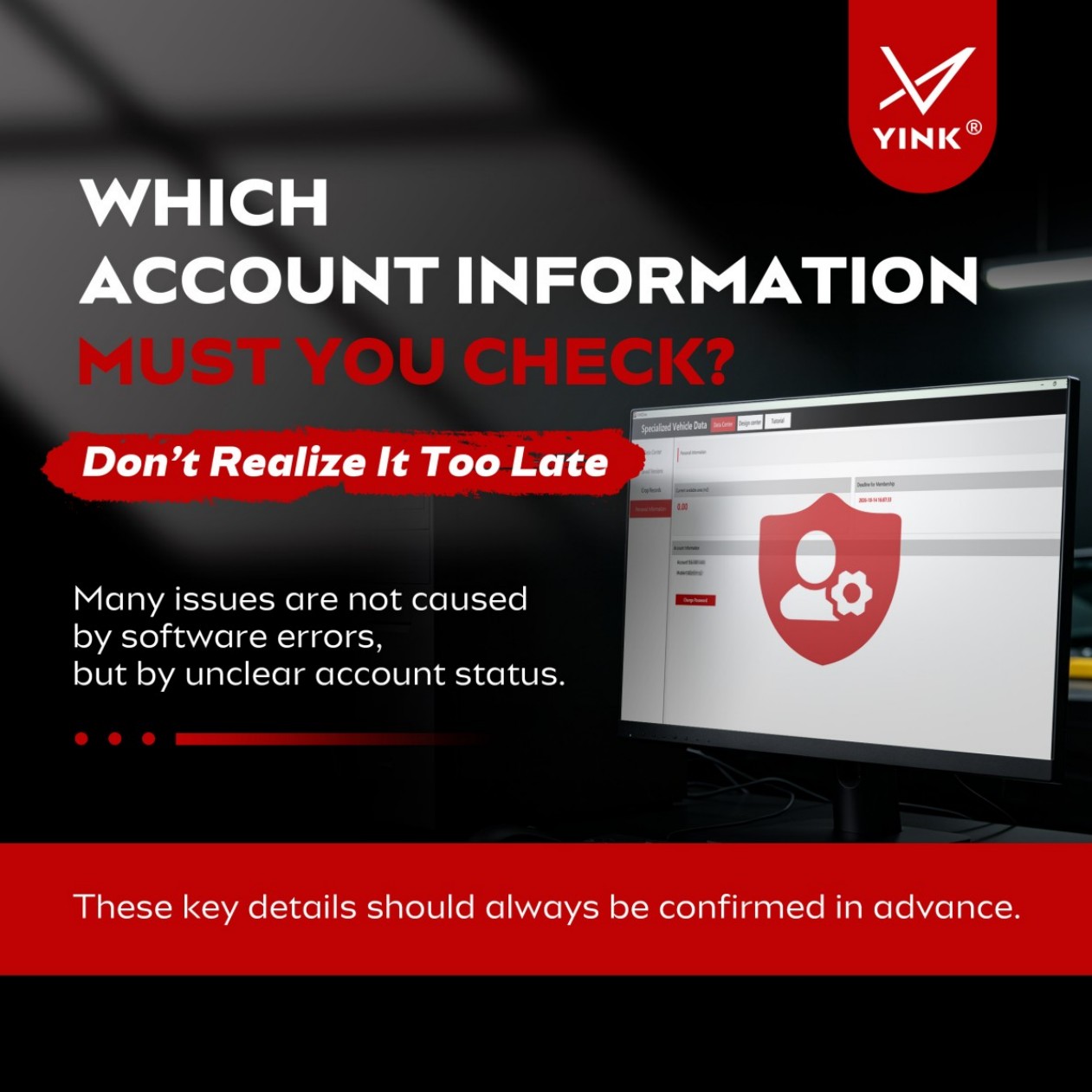
Many users assume that if something goes wrong in YINK, it must be a software issue.
In reality, a large number of problems are caused by account settings rather than the software itself.
For example, you may find that a feature suddenly becomes unavailable, encounter permission-related login issues, lose access after changing computers, or realize your account has expired in the middle of a job.
These situations often have one thing in common: the account information was never checked in advance.
For new users, spending just a few minutes reviewing account details before starting design and cutting work can prevent a surprising number of issues later on.
Why Account Information Matters More Than You Think
Most users focus on templates, layouts, and cutting functions, while paying little attention to the account itself.
However, your account is the foundation of the entire workflow.
If your account status is incorrect, even a perfectly configured software setup may not work as expected.
More importantly, many issues that users assume are software bugs are actually related to account settings.
Common examples include:
→ Features that cannot be accessed
→ Permission restrictions
→ Login failures
→ Device authorization issues
→ Expired subscriptions
When these problems occur during an installation job, they can disrupt the entire workflow and delay customer delivery.
That is why account management is not simply an administrative task — it is an important part of operational efficiency.
Four Account Details You Should Always Check Before Using YINK
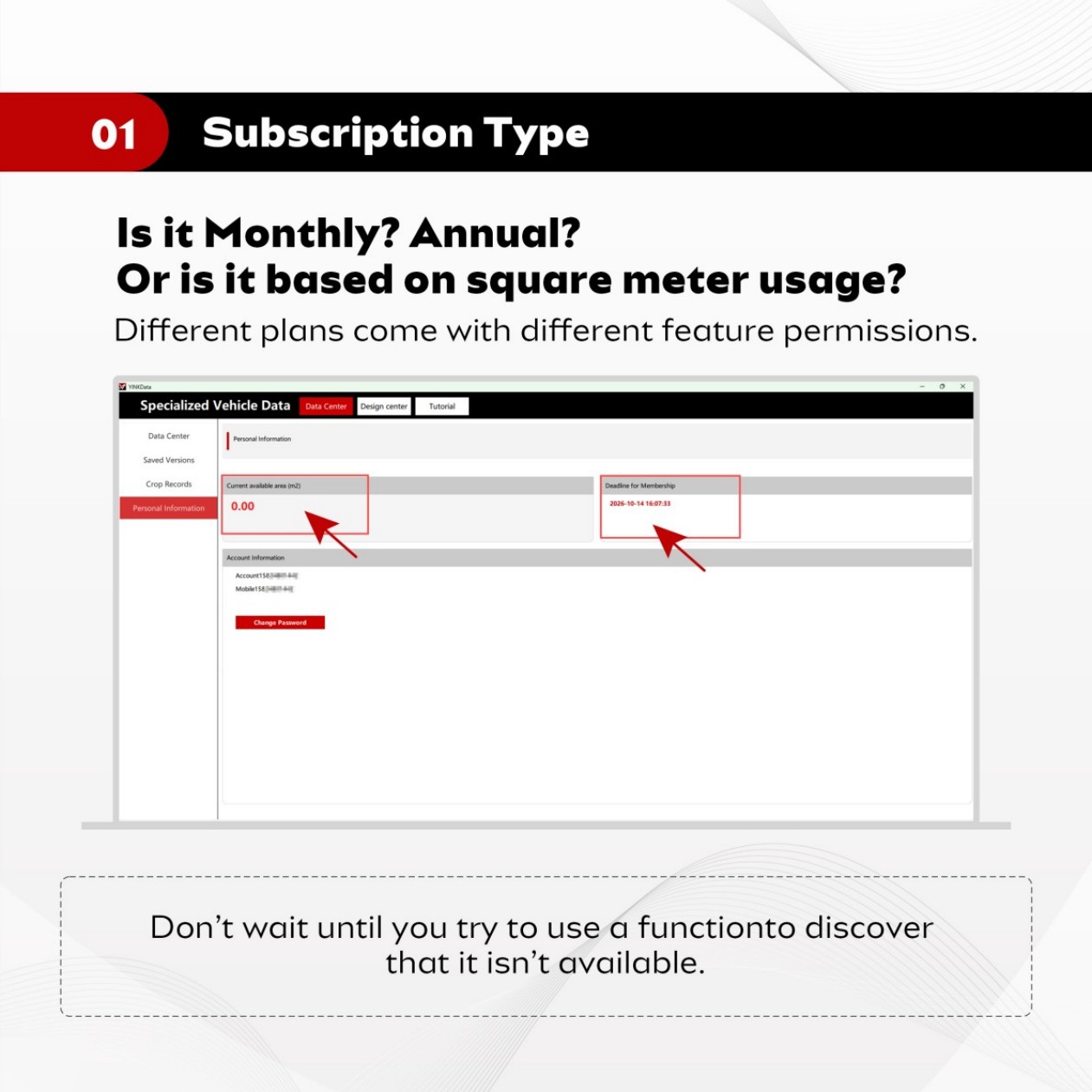
Verify Your Subscription Type
Many users begin working immediately after registration without checking which subscription plan they are using.
Different subscription plans provide different levels of access and functionality.
Common subscription options include:
→ Monthly Subscription
→ Annual Subscription
→ Square-Meter-Based Plan
Depending on the plan, certain features may or may not be available.
If you are unaware of your subscription type, you may only discover the limitation when you actually need a specific feature.
This can interrupt your workflow and create unnecessary confusion.
For that reason, it is always recommended to verify your subscription plan before starting work.
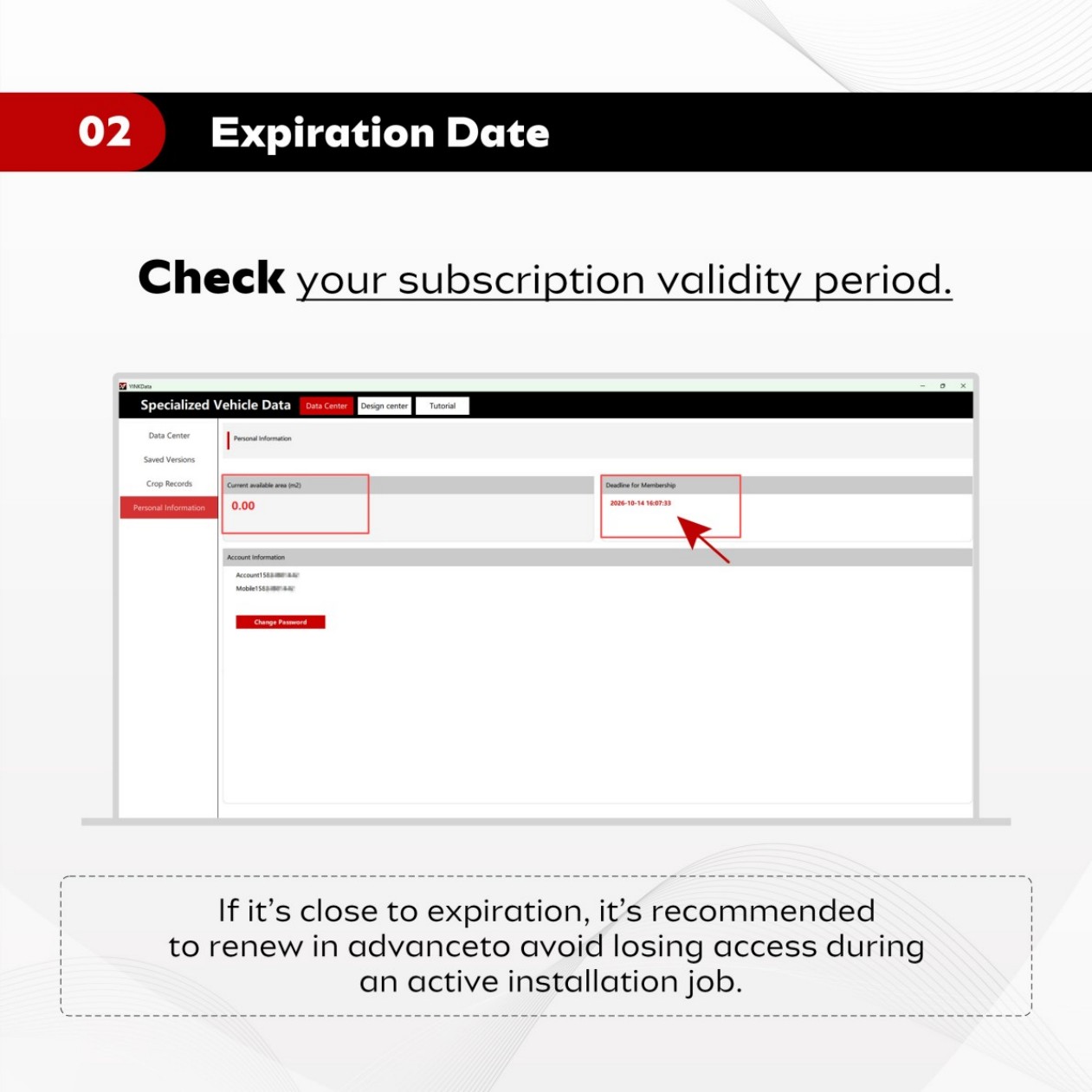
Check the Expiration Date
Subscription validity is one of the most commonly overlooked account details.
Everything may appear normal until the day your account expires.
For installation shops, this often happens at the worst possible moment.
Imagine the situation:
→ The customer has already arrived.
→ The vehicle is ready for installation.
→ The template has been selected.
→ Then you discover that the account can no longer log in.
Not only does this affect efficiency, but it can also negatively impact the customer experience.
To avoid interruptions, it is a good habit to regularly check your expiration date and arrange renewal before the account expires.
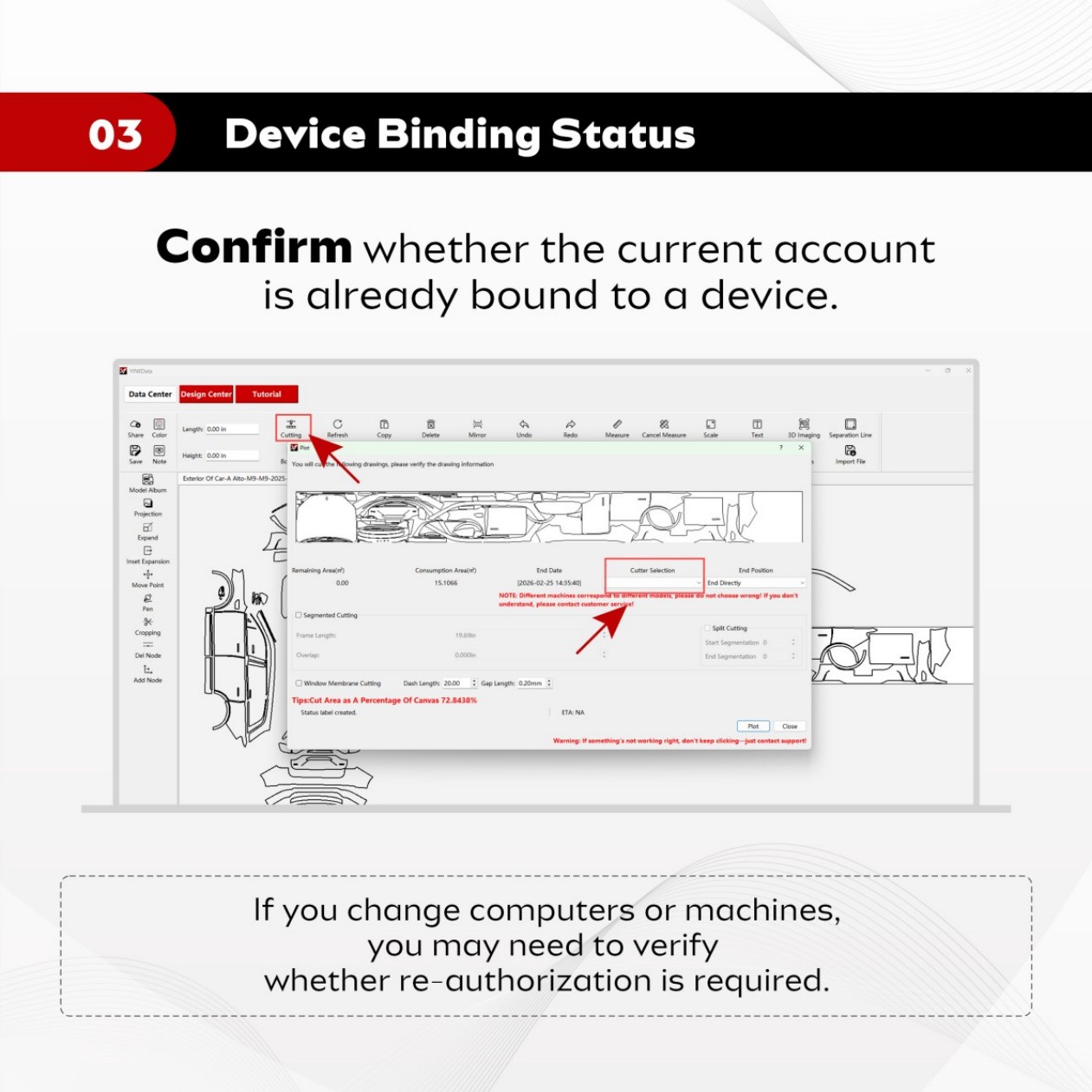
Confirm Device Binding Status
As your business grows, you may replace computers, add new workstations, or upgrade equipment.
When that happens, device authorization becomes an important consideration.
If your account is already bound to a specific device, switching computers may require reauthorization before you can continue using the software.
Before replacing hardware, it is recommended to verify:
→ Whether the account is currently bound to a device
→ Whether existing authorization needs to be removed
→ Whether a new activation is required
Checking these details in advance can prevent unnecessary downtime when upgrading equipment.
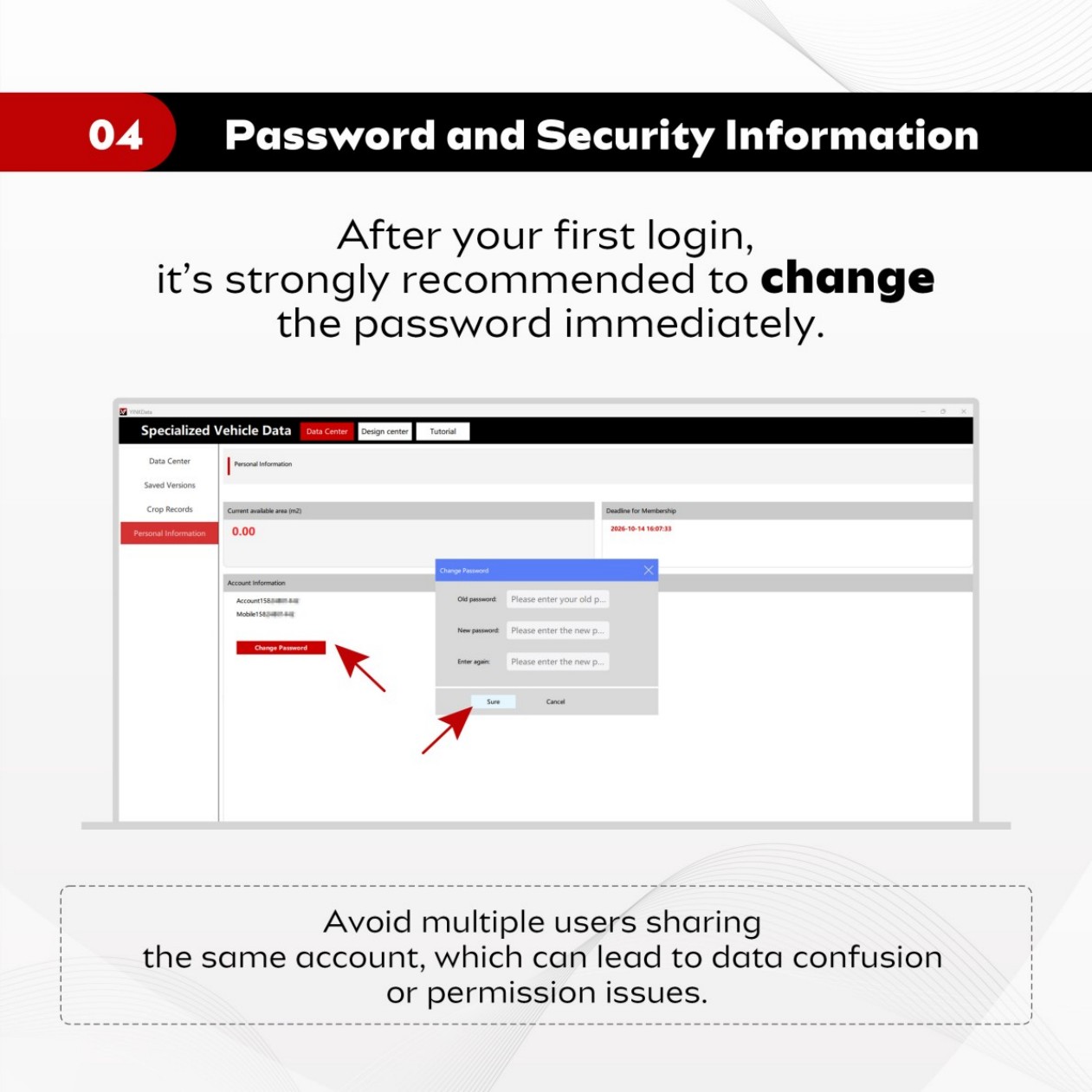
Review Password and Security Information
Many users continue using the default password long after their first login.
From a security perspective, this is not recommended.
The risk becomes even greater in shops where multiple employees share the same account.
Over time, shared accounts can lead to:
→ Data confusion
→ Permission conflicts
→ Untracked changes
→ Unauthorized password updates
When multiple people use the same credentials, it becomes difficult to identify who made specific changes.
For this reason, users should change the default password immediately after the first login and establish clear account management practices.
For team environments, limiting access to authorized personnel can help maintain both security and workflow stability.
Many Efficiency Problems Start With Account Management
Some users view account information as a simple administrative detail.
In reality, it directly affects daily operations.
Your account permissions determine which features are available.
Your subscription status determines whether the software remains accessible.
Your device authorization determines whether workstations can function properly.
Your password management determines the security and stability of your data.
These seemingly small details can have a major impact on productivity.
In many cases, spending a few minutes reviewing account information can save hours — or even days — of troubleshooting later.
Conclusion
For YINK users, account information is not something that should be forgotten after registration.
Whether you are a new user or a long-term customer, it is a good practice to regularly review the following:
→ Subscription Type
→ Expiration Date
→ Device Binding Status
→ Password and Security Information
These simple checks can help prevent many common issues before they occur.
When your account is properly configured, your permissions are active, and your devices are correctly authorized, the entire design, layout, and cutting workflow becomes far more efficient and reliable.
FAQ
Why can I log in but still cannot access certain features?
This is usually related to your subscription type or account permissions. Check your current subscription plan and verify whether the feature is included.
What should I do if I cannot use my account after changing computers?
First, check whether the account is bound to a device. If device authorization is required, you may need to reactivate the account on the new computer.
Can multiple employees share the same account?
While it may be technically possible, it is not recommended for long-term use. Shared accounts can create security risks, data confusion, and permission management challenges.
Post time: Jun-10-2026


